Since I've wasted a couple of hours on this I'll share my findings. I'm creating a web service that will do a mail merge for me using Aspose Words. The document template is stored in a SharePoint document library as a content type and the merged document I want to store back into the document library.
I tackled the upload first. Since my web service and SharePoint will be installed on separate servers, I call the SharePoint Copy.asmx web service to upload the document. That works fine. My next task was to use the document template from SharePoint which I need to retrieve as a memory stream.
The preferred method is to use the GetItem method of the Copy.asmx service. No problem I thought as I already has a reference to it.
But try as I might I could not manage to download the template. When you install a content type as a template the path to the document is something like this
DocLib/Forms/Some Letter/SomeLetter.dotx
I suspect it was something to do with this location that it would not work. If I tried the same code on a document in the library itself it worked fine. I gave up in frustration and started Googling for alternatives.
I came up with this incredibly simple approach which I share below. It simply uses the DownloadData method of the WebClient. Since I know the absolute path of the template, it works a treat.
public MemoryStream DownloadSharePointDocument(string sourceUrl)
{
string sharePointSiteUrl = ConfigurationManager.AppSettings["sharepointsiteurl"];
if (!sharePointSiteUrl.EndsWith("/"))
{
sharePointSiteUrl = sharePointSiteUrl + "/";
}
sourceUrl = sharePointSiteUrl + sourceUrl;
WebClient wc = new WebClient();
wc.UseDefaultCredentials = true;
byte[] response = wc.DownloadData(sourceUrl);
MemoryStream ms = HelperMethods.MemoryStreamFromBytes(response);
return ms;
}
Showing posts with label SharePoint. Show all posts
Showing posts with label SharePoint. Show all posts
Friday, January 24, 2014

Saturday, February 19, 2011
Create SharePoint Document Locations in CRM 2011 - Part 3
This is the last of 3 posts describing how to add SharePoint document locations into CRM.
Part 1
Part 2
This code should be added to that in the previous blog post. I had a devil of a job with a 401 error, but this finally cracked it.
Add a web reference to
http://server01/_vti_bin/Lists.asmx and name the reference listservice
http://server01/_vti_bin/Views.asmx and name the reference views
Add a using statement
using system.Xml;
Add this method into the code in previous blog post.
private static void CreateSharePointFolder(string docfolderUrl)
{
if (docfolderUrl == String.Empty || docfolderUrl.IndexOf("/") == -1)
{
return;
}
try
{
// last part is the folder name
string folderName = docfolderUrl.Substring(docfolderUrl.LastIndexOf("/") + 1);
// remove the folder name
docfolderUrl = docfolderUrl.Replace("/" + folderName, "");
// get the document libray name
string docLib = docfolderUrl.Substring(docfolderUrl.LastIndexOf("/") + 1);
// now remove the doc lib to leave the sharepoint site url
string sharePointSiteUrl = docfolderUrl.Replace("/" + docLib, "");
listservice.Lists myLists = new listservice.Lists();
views.Views myViews = new views.Views();
myLists.Url = sharePointSiteUrl + "/_vti_bin/lists.asmx";
myViews.Url = sharePointSiteUrl + "/_vti_bin/views.asmx";
myLists.UseDefaultCredentials = true;
myViews.UseDefaultCredentials = true;
XmlNode viewCol = myViews.GetViewCollection(docLib);
XmlNode viewNode = viewCol.SelectSingleNode("*[@DisplayName='All Documents']");
string viewName = viewNode.Attributes["Name"].Value.ToString();
/*Get Name attribute values (GUIDs) for list and view. */
System.Xml.XmlNode ndListView = myLists.GetListAndView(docLib, viewName);
/*Get Name attribute values (GUIDs) for list and view. */
string strListID = ndListView.ChildNodes[0].Attributes["Name"].Value;
string strViewID = ndListView.ChildNodes[1].Attributes["Name"].Value;
// load the CAML query
XmlDocument doc = new XmlDocument();
string xmlCommand;
xmlCommand = "<Method ID='1' Cmd='New'><Field Name='FSObjType'>1</Field><Field Name='BaseName'>" + folderName + "</Field> <Field Name='ID'>New</Field></Method>";
XmlElement ele = doc.CreateElement("Batch");
ele.SetAttribute("OnError", "Continue");
ele.SetAttribute("ListVersion", "1");
ele.SetAttribute("ViewName", strViewID);
ele.InnerXml = xmlCommand;
XmlNode resultNode = myLists.UpdateListItems(strListID, ele);
// check for errors
NameTable nt = new NameTable();
XmlNamespaceManager nsmgr = new XmlNamespaceManager(nt);
nsmgr.AddNamespace("tns", "http://schemas.microsoft.com/sharepoint/soap/");
if (resultNode != null)
{ // look for error text in case of duplicate folder or invalid folder name
XmlNode errNode = resultNode.SelectSingleNode("tns:Result/tns:ErrorText", nsmgr);
if (errNode != null)
{
// Write error to log;
}
}
}
catch (Exception ex)
{
throw ex ;
}
}
Part 1
Part 2
This code should be added to that in the previous blog post. I had a devil of a job with a 401 error, but this finally cracked it.
Add a web reference to
http://server01/_vti_bin/Lists.asmx and name the reference listservice
http://server01/_vti_bin/Views.asmx and name the reference views
Add a using statement
using system.Xml;
Add this method into the code in previous blog post.
private static void CreateSharePointFolder(string docfolderUrl)
{
if (docfolderUrl == String.Empty || docfolderUrl.IndexOf("/") == -1)
{
return;
}
try
{
// last part is the folder name
string folderName = docfolderUrl.Substring(docfolderUrl.LastIndexOf("/") + 1);
// remove the folder name
docfolderUrl = docfolderUrl.Replace("/" + folderName, "");
// get the document libray name
string docLib = docfolderUrl.Substring(docfolderUrl.LastIndexOf("/") + 1);
// now remove the doc lib to leave the sharepoint site url
string sharePointSiteUrl = docfolderUrl.Replace("/" + docLib, "");
listservice.Lists myLists = new listservice.Lists();
views.Views myViews = new views.Views();
myLists.Url = sharePointSiteUrl + "/_vti_bin/lists.asmx";
myViews.Url = sharePointSiteUrl + "/_vti_bin/views.asmx";
myLists.UseDefaultCredentials = true;
myViews.UseDefaultCredentials = true;
XmlNode viewCol = myViews.GetViewCollection(docLib);
XmlNode viewNode = viewCol.SelectSingleNode("*[@DisplayName='All Documents']");
string viewName = viewNode.Attributes["Name"].Value.ToString();
/*Get Name attribute values (GUIDs) for list and view. */
System.Xml.XmlNode ndListView = myLists.GetListAndView(docLib, viewName);
/*Get Name attribute values (GUIDs) for list and view. */
string strListID = ndListView.ChildNodes[0].Attributes["Name"].Value;
string strViewID = ndListView.ChildNodes[1].Attributes["Name"].Value;
// load the CAML query
XmlDocument doc = new XmlDocument();
string xmlCommand;
xmlCommand = "<Method ID='1' Cmd='New'><Field Name='FSObjType'>1</Field><Field Name='BaseName'>" + folderName + "</Field> <Field Name='ID'>New</Field></Method>";
XmlElement ele = doc.CreateElement("Batch");
ele.SetAttribute("OnError", "Continue");
ele.SetAttribute("ListVersion", "1");
ele.SetAttribute("ViewName", strViewID);
ele.InnerXml = xmlCommand;
XmlNode resultNode = myLists.UpdateListItems(strListID, ele);
// check for errors
NameTable nt = new NameTable();
XmlNamespaceManager nsmgr = new XmlNamespaceManager(nt);
nsmgr.AddNamespace("tns", "http://schemas.microsoft.com/sharepoint/soap/");
if (resultNode != null)
{ // look for error text in case of duplicate folder or invalid folder name
XmlNode errNode = resultNode.SelectSingleNode("tns:Result/tns:ErrorText", nsmgr);
if (errNode != null)
{
// Write error to log;
}
}
}
catch (Exception ex)
{
throw ex ;
}
}
Create SharePoint Document Locations in CRM 2011 - Part 2
This is part 2 of three posts
Part 1
Part 3
This code expects the Guid for the Contact and then returns the SharePointDocumentLocation AbsoluteUrl. For example it should return <a href="http://server01/contact/Charles Emes">http://server01/contact/Charles Emes</a>. That folder should exist in the SharePoint document library 'Contact'. Note that the code for creating the SharePoint folder is in the following blog post.
Add references to Microsoft.Crm.Sdk.Proxy.dll and Microsoft.Xrm.Sdk.dll to your project. Add the file crmsdktypes.cs into your project (note the SharePointDocumentLocation object is defined within this class and the code won't work without it). All of these files you will find in the CRM SDK directory.
Add the following using statements
using Microsoft.Xrm.Sdk;
using Microsoft.Xrm.Sdk.Query;
using Microsoft.Xrm.Sdk.Client;
using Microsoft.Crm.Sdk.Messages;
public class IntegrationService
{
// private static string ContactId = "3E339B88-C632-E011-BCDE-00155D110735";
public static string GetSharePointLocation(string ContactId)
{
try
{
// Connect to the Organization service.
System.ServiceModel.Description.ClientCredentials cred = new System.ServiceModel.Description.ClientCredentials();
cred.Windows.ClientCredential = new System.Net.NetworkCredential("Username", "Password", "Domain");
Uri organizationUri = new Uri("http://server01:5555/orgName/XRMServices/2011/Organization.svc");
Uri homeRealmUri = null;
OrganizationServiceProxy orgService = new OrganizationServiceProxy(organizationUri, homeRealmUri, cred, null);
// This statement is required to enable early-bound type support.
// IMPORTANT ADD THIS LINE
orgService.ServiceConfiguration.CurrentServiceEndpoint.Behaviors.Add(new ProxyTypesBehavior());
Guid guidSPDocLoc = RetrieveSharePointLocation(orgService, ContactId);
string absouteUrl = GetAbslouteUrl(orgService, guidSPDocLoc);
orgService.Dispose();
return absouteUrl;
}
// Catch any service fault exceptions that Microsoft Dynamics CRM throws.
catch (FaultException<Microsoft.Xrm.Sdk.OrganizationServiceFault> ex)
{
// You can handle an exception here or pass it back to the calling method.
return ex.Message;
}
}
private static Guid RetrieveSharePointLocation(OrganizationServiceProxy orgService, string ContactId)
{
Guid _spDocLocId = Guid.Empty;
// get the fullname from the contactid - that will be foolder name
string FolderName = GetEntityNamefromGuid(orgService, ContactId);
// replace any illegal chars with '-'
// TO DO
string fetch2 = @"
<fetch mapping='logical'>
<entity name='sharepointdocumentlocation'>
<attribute name='sharepointdocumentlocationid'/>
<filter type='and'>
<condition attribute='regardingobjectid' operator='eq' value='[GUID]' />
</filter>
</entity>
</fetch> ";
fetch2 = fetch2.Replace("[GUID]", ContactId);
EntityCollection result = orgService.RetrieveMultiple(new FetchExpression(fetch2));
foreach (var c in result.Entities)
{
// TO DO there can be more than one so add condition
_spDocLocId = (Guid) c.Attributes["sharepointdocumentlocationid"];
}
if (_spDocLocId == Guid.Empty)
{
// there is no location so create one
_spDocLocId = CreateSharePointDocLocation(orgService, FolderName, ContactId);
// get the abslouteURL from the doc location just created
string absouteUrl = GetAbslouteUrl(orgService, _spDocLocId);
// We still need to create a SharePoint folder
// THIS METHOD IN FOLLOWING POST **********
CreateSharePointFolder(absouteUrl);
}
return _spDocLocId;
}
private static string GetEntityNamefromGuid(OrganizationServiceProxy orgService, string ContactId)
{
string fetch1 = @"
<fetch mapping='logical'>
<entity name='contact'>
<attribute name='fullname'/>
<filter type='and'>
<condition attribute='contactid' operator='eq' value='[GUID]' />
</filter>
</entity>
</fetch> ";
fetch1 = fetch1.Replace("[GUID]", ContactId);
string fullname = string.Empty;
EntityCollection result = orgService.RetrieveMultiple(new FetchExpression(fetch1));
foreach (var c in result.Entities)
{ // there can be more than one so add condition
fullname = c.Attributes["fullname"].ToString();
}
return fullname;
}
private static Guid CreateSharePointDocLocation(OrganizationServiceProxy _serviceProxy, string FolderName, string ContactId)
{
// use the Parent Location Id NOT the SharePointSiteId
// Parent Location will create url http://sharepoint/contact/CharlesEmes
// SharePointSiteID will create url http://sharepoint/CharlesEmes
Guid _spParentLocId = new Guid("415FF5BA-CA39-E011-92D1-00155D110735");
// Instantiate a SharePoint document location object.
SharePointDocumentLocation spDocLoc = new SharePointDocumentLocation
{
Name = "Documents on Default Site 1",
Description = null,
// Set the Regarding Object id - in this case its a contact
RegardingObjectId = new EntityReference(Contact.EntityLogicalName , new Guid(ContactId)),
// Set the Parent Location ID
ParentSiteOrLocation = new EntityReference(SharePointDocumentLocation.EntityLogicalName, _spParentLocId),
RelativeUrl = FolderName
};
// Create a SharePoint document location record named Documents on Default Site 1.
Guid _spDocLocId = _serviceProxy.Create(spDocLoc);
// Console.WriteLine("{0} created.", spDocLoc.Name);
return _spDocLocId;
}
private static string GetAbslouteUrl(OrganizationServiceProxy orgService, Guid _spDocLocId)
{
IOrganizationService _service = (IOrganizationService)orgService;
RetrieveAbsoluteAndSiteCollectionUrlRequest retrieveRequest = new RetrieveAbsoluteAndSiteCollectionUrlRequest
{
Target = new EntityReference(SharePointDocumentLocation.EntityLogicalName, _spDocLocId)
};
RetrieveAbsoluteAndSiteCollectionUrlResponse retrieveResponse = (RetrieveAbsoluteAndSiteCollectionUrlResponse)_service.Execute(retrieveRequest);
return retrieveResponse.AbsoluteUrl.ToString();
}
}
Part 1
Part 3
This code expects the Guid for the Contact and then returns the SharePointDocumentLocation AbsoluteUrl. For example it should return <a href="http://server01/contact/Charles Emes">http://server01/contact/Charles Emes</a>. That folder should exist in the SharePoint document library 'Contact'. Note that the code for creating the SharePoint folder is in the following blog post.
Add references to Microsoft.Crm.Sdk.Proxy.dll and Microsoft.Xrm.Sdk.dll to your project. Add the file crmsdktypes.cs into your project (note the SharePointDocumentLocation object is defined within this class and the code won't work without it). All of these files you will find in the CRM SDK directory.
Add the following using statements
using Microsoft.Xrm.Sdk;
using Microsoft.Xrm.Sdk.Query;
using Microsoft.Xrm.Sdk.Client;
using Microsoft.Crm.Sdk.Messages;
public class IntegrationService
{
// private static string ContactId = "3E339B88-C632-E011-BCDE-00155D110735";
public static string GetSharePointLocation(string ContactId)
{
try
{
// Connect to the Organization service.
System.ServiceModel.Description.ClientCredentials cred = new System.ServiceModel.Description.ClientCredentials();
cred.Windows.ClientCredential = new System.Net.NetworkCredential("Username", "Password", "Domain");
Uri organizationUri = new Uri("http://server01:5555/orgName/XRMServices/2011/Organization.svc");
Uri homeRealmUri = null;
OrganizationServiceProxy orgService = new OrganizationServiceProxy(organizationUri, homeRealmUri, cred, null);
// This statement is required to enable early-bound type support.
// IMPORTANT ADD THIS LINE
orgService.ServiceConfiguration.CurrentServiceEndpoint.Behaviors.Add(new ProxyTypesBehavior());
Guid guidSPDocLoc = RetrieveSharePointLocation(orgService, ContactId);
string absouteUrl = GetAbslouteUrl(orgService, guidSPDocLoc);
orgService.Dispose();
return absouteUrl;
}
// Catch any service fault exceptions that Microsoft Dynamics CRM throws.
catch (FaultException<Microsoft.Xrm.Sdk.OrganizationServiceFault> ex)
{
// You can handle an exception here or pass it back to the calling method.
return ex.Message;
}
}
private static Guid RetrieveSharePointLocation(OrganizationServiceProxy orgService, string ContactId)
{
Guid _spDocLocId = Guid.Empty;
// get the fullname from the contactid - that will be foolder name
string FolderName = GetEntityNamefromGuid(orgService, ContactId);
// replace any illegal chars with '-'
// TO DO
string fetch2 = @"
<fetch mapping='logical'>
<entity name='sharepointdocumentlocation'>
<attribute name='sharepointdocumentlocationid'/>
<filter type='and'>
<condition attribute='regardingobjectid' operator='eq' value='[GUID]' />
</filter>
</entity>
</fetch> ";
fetch2 = fetch2.Replace("[GUID]", ContactId);
EntityCollection result = orgService.RetrieveMultiple(new FetchExpression(fetch2));
foreach (var c in result.Entities)
{
// TO DO there can be more than one so add condition
_spDocLocId = (Guid) c.Attributes["sharepointdocumentlocationid"];
}
if (_spDocLocId == Guid.Empty)
{
// there is no location so create one
_spDocLocId = CreateSharePointDocLocation(orgService, FolderName, ContactId);
// get the abslouteURL from the doc location just created
string absouteUrl = GetAbslouteUrl(orgService, _spDocLocId);
// We still need to create a SharePoint folder
// THIS METHOD IN FOLLOWING POST **********
CreateSharePointFolder(absouteUrl);
}
return _spDocLocId;
}
private static string GetEntityNamefromGuid(OrganizationServiceProxy orgService, string ContactId)
{
string fetch1 = @"
<fetch mapping='logical'>
<entity name='contact'>
<attribute name='fullname'/>
<filter type='and'>
<condition attribute='contactid' operator='eq' value='[GUID]' />
</filter>
</entity>
</fetch> ";
fetch1 = fetch1.Replace("[GUID]", ContactId);
string fullname = string.Empty;
EntityCollection result = orgService.RetrieveMultiple(new FetchExpression(fetch1));
foreach (var c in result.Entities)
{ // there can be more than one so add condition
fullname = c.Attributes["fullname"].ToString();
}
return fullname;
}
private static Guid CreateSharePointDocLocation(OrganizationServiceProxy _serviceProxy, string FolderName, string ContactId)
{
// use the Parent Location Id NOT the SharePointSiteId
// Parent Location will create url http://sharepoint/contact/CharlesEmes
// SharePointSiteID will create url http://sharepoint/CharlesEmes
Guid _spParentLocId = new Guid("415FF5BA-CA39-E011-92D1-00155D110735");
// Instantiate a SharePoint document location object.
SharePointDocumentLocation spDocLoc = new SharePointDocumentLocation
{
Name = "Documents on Default Site 1",
Description = null,
// Set the Regarding Object id - in this case its a contact
RegardingObjectId = new EntityReference(Contact.EntityLogicalName , new Guid(ContactId)),
// Set the Parent Location ID
ParentSiteOrLocation = new EntityReference(SharePointDocumentLocation.EntityLogicalName, _spParentLocId),
RelativeUrl = FolderName
};
// Create a SharePoint document location record named Documents on Default Site 1.
Guid _spDocLocId = _serviceProxy.Create(spDocLoc);
// Console.WriteLine("{0} created.", spDocLoc.Name);
return _spDocLocId;
}
private static string GetAbslouteUrl(OrganizationServiceProxy orgService, Guid _spDocLocId)
{
IOrganizationService _service = (IOrganizationService)orgService;
RetrieveAbsoluteAndSiteCollectionUrlRequest retrieveRequest = new RetrieveAbsoluteAndSiteCollectionUrlRequest
{
Target = new EntityReference(SharePointDocumentLocation.EntityLogicalName, _spDocLocId)
};
RetrieveAbsoluteAndSiteCollectionUrlResponse retrieveResponse = (RetrieveAbsoluteAndSiteCollectionUrlResponse)_service.Execute(retrieveRequest);
return retrieveResponse.AbsoluteUrl.ToString();
}
}
Create SharePoint Document Locations in CRM 2011 - Part 1
This post is the first of three on how to programmatically create SharePoint 2010 Document Folders in CRM 2011 so that documents can be uploaded.
Part 2
Part 3
There is quite a lot of code for this solution which is why I've broken it up into 3 parts. This first part outlines the scenario and the assumptions.
So here is the scenario. I have CRM 2011 and I want to store documents related to the Contact entity in SharePoint 2010. In my development environment I have both of these on the same virtual image but I've designed the code to work as a web service so it can sit it anywhere.
What CRM 2011 does is create a document library for each Entity that is enabled for document storage, and then creates a folder for each record. This example focuses on the Contact entity but it can be easily applied to other entities. When a new entity record is created in CRM 2011 and the Document menu item is clicked, it will create a) a SharePointDocumentLocation record in CRM that has the path to the SharePoint folder and b) warns you that it is about to create a document folder. The name of the folder for a Contact if based on full name. So what happens if you have two John Smiths? If the first already has created a document folder it detects that and prompts with 'the folder already exists do you want to use it?' If not, then you can modify the name of the folder to ensure it is unique.
This is an imprtant point. Assume you have a contact called Robin Wright. When you create a document folder it will be called 'Robin Wright'. When Robin gets married and changes her name to 'Robin Wrigth-Penn' then the document folder name remains the same name. CRM 2011 uses the SharePoint document location record to point to the orginal folder name. So you need to be careful, you can't assume that the full name in CRM is the same as the document folder name.
For this example I am going to assume you have the Guid for the Contact in question. This unique identifier will be used to determine if there is already a SharePoint Document Location created for this record. If so, it returns the url for you. If not, it will create the SharePoint Document Location in CRM and then create the actual folder in SharePoint based on the full name and finally returns the url to the folder.
So this code either uses the existing SharePoint Document Location or will create a new one for you and create the folder in SharePoint.
I have made another assumption. I assume you have created the SharePoint site already with the document library for the entity "Contact". It will help if you have a few SharePoint document locations already created because then you will be able to see how the database field 'ParentSiteorLocation' is populated in the SharePointDocumentLocationBase table. You need to use the 'root' Guid for the Contact document library and it should be obvious what this is if you have a few records in the table.
You can recognise this row in the table as the relativeurl reads 'contact' and the RegardingObjectID is null. The Guid you need is the SharePointDocumentLocationId from this record. It will become clearer (I hope) when you see the code.
There is another issue you will need to be aware of. Folder names in SharePoint will not allow certain characters. If they exist in your CRM Contact record e.g. the first name reads 'John & Jane' then CRM replaces the & with -. I have not checked all illegal characters are substituted with hyphen but it is my working assumption. So be warned, you will need to modify full name of contact to replace illegal characters. Also please note this code does NOT handle duplicate names - you will need to check for a duplicate and create a unique folder name.
So the next blog has the CRM code for using an existing SharePoint Document Location or create a new location. There is a reference in the code to a function that will create the actual SharePoint folder but the code for that is in the last blog.
Part 2
Part 3
There is quite a lot of code for this solution which is why I've broken it up into 3 parts. This first part outlines the scenario and the assumptions.
So here is the scenario. I have CRM 2011 and I want to store documents related to the Contact entity in SharePoint 2010. In my development environment I have both of these on the same virtual image but I've designed the code to work as a web service so it can sit it anywhere.
What CRM 2011 does is create a document library for each Entity that is enabled for document storage, and then creates a folder for each record. This example focuses on the Contact entity but it can be easily applied to other entities. When a new entity record is created in CRM 2011 and the Document menu item is clicked, it will create a) a SharePointDocumentLocation record in CRM that has the path to the SharePoint folder and b) warns you that it is about to create a document folder. The name of the folder for a Contact if based on full name. So what happens if you have two John Smiths? If the first already has created a document folder it detects that and prompts with 'the folder already exists do you want to use it?' If not, then you can modify the name of the folder to ensure it is unique.
This is an imprtant point. Assume you have a contact called Robin Wright. When you create a document folder it will be called 'Robin Wright'. When Robin gets married and changes her name to 'Robin Wrigth-Penn' then the document folder name remains the same name. CRM 2011 uses the SharePoint document location record to point to the orginal folder name. So you need to be careful, you can't assume that the full name in CRM is the same as the document folder name.
For this example I am going to assume you have the Guid for the Contact in question. This unique identifier will be used to determine if there is already a SharePoint Document Location created for this record. If so, it returns the url for you. If not, it will create the SharePoint Document Location in CRM and then create the actual folder in SharePoint based on the full name and finally returns the url to the folder.
So this code either uses the existing SharePoint Document Location or will create a new one for you and create the folder in SharePoint.
I have made another assumption. I assume you have created the SharePoint site already with the document library for the entity "Contact". It will help if you have a few SharePoint document locations already created because then you will be able to see how the database field 'ParentSiteorLocation' is populated in the SharePointDocumentLocationBase table. You need to use the 'root' Guid for the Contact document library and it should be obvious what this is if you have a few records in the table.
You can recognise this row in the table as the relativeurl reads 'contact' and the RegardingObjectID is null. The Guid you need is the SharePointDocumentLocationId from this record. It will become clearer (I hope) when you see the code.
There is another issue you will need to be aware of. Folder names in SharePoint will not allow certain characters. If they exist in your CRM Contact record e.g. the first name reads 'John & Jane' then CRM replaces the & with -. I have not checked all illegal characters are substituted with hyphen but it is my working assumption. So be warned, you will need to modify full name of contact to replace illegal characters. Also please note this code does NOT handle duplicate names - you will need to check for a duplicate and create a unique folder name.
So the next blog has the CRM code for using an existing SharePoint Document Location or create a new location. There is a reference in the code to a function that will create the actual SharePoint folder but the code for that is in the last blog.
Monday, May 18, 2009
Creating a SQL Server Reporting Services Report from a SharePoint List
Although I've found blogs that explain how you can create a SQL Server Reporting Services (SSRS) report from a SharePoint list I've found just as many that say it can't be done. The explanation for the two conflicting views is (IMHO) because there is an epectation that because SharePoint lists are stored in SQL Server that you can query them directly at the database level. That is certainly not the case. If you try accessing the database directly then you deserve all the bad things that will befall you!
The correct answer is yes, you can use SharePoint lists as a datasource but via the SharePoint web services. The SharePoint web services can be found in the _vti_bin directory of each SharePoint web application and the web service you want to interrogate to get at Lists is called lists.asmx. This blog on Code Project explains how to do it quite well.
So here is how you go about it. Start off in VS 2005 and create a new Reporting Services project. Add a Shared Datasource and make it of type XML, then add the url to the web service: e.g. http:///_vti_bin/lists.asmx. You can optionally add the full path to the site e.g. http:///sites//_vti_bin/lists.asmx because this still works although you won't find this path in IISAdmin.
Then create a new report based on this datasource and add the following for the Query string
<Query>
<SoapAction>http://schemas.microsoft.com/sharepoint/soap/GetListItems</SoapAction>
<Method Namespace="http://schemas.microsoft.com/sharepoint/soap/" Name="GetListItems">
<Parameters>
<Parameter Name="listName">
<DefaultValue>{DCED6771-E498-4BC5-B44D-BE71C5D7B6C8}</DefaultValue>
</Parameter>
<Parameter Name="viewName">
<DefaultValue>{C63CFF34-647C-4FFA-9E20-DA1B6737380A}</DefaultValue>
</Parameter>
<Parameter Name="rowLimit">
<DefaultValue>9999</DefaultValue>
</Parameter>
</Parameters>
</Method>
<ElementPath IgnoreNamespaces="True">*</ElementPath>
</Query>
Although only the listName parameter is mandatory you should always add viewName because otherwise the default view is used and this can be changed by a user and may mess up you report. Also be sure to add rowLimit because the default is 100 rows and you want to be sure you report on all the data.
Note that all the parameter names are case sensitive and you need to use the GUID rather than the name of the list and view. You might get some success with using the name but several other bloggers have reported this doesn't always work. You can find the GUID in SharePoint by simply editing the list or the view and you will see it in the URL of the Internet Explorer address bar. Just replace %2D with a hyphen and the %7B and %7D with curly braces {}.
Once you added this as your query string you should see a list of fields which you can add to your report. Note that SSRS doesn't recognise the data type of the fields and everything returned is treated as a string. Use the CInt and CDate functions (and the other converstion functions) to convert the data into the correct format - particularly if you want to include totals in your reports.
The 'lookup' and 'people and groups' fields are of the format 99#;text where 99 is the ID. To handle this goto Visual Studio, select the Report menu -> Report Properties and select the Code tab and then embed a function to strip off the stuff you don't need. This blog had a good example of the code you need.
Once you've built your report, then deploy it to Reporting Services in the same way but create a datasource in Report Manager using the same approach you did in Visual Studio (connection type: XML, connection string: http:///_vti_bin/lists.asmx). Set the credentials to be Windows Integrated and be sure that users running the report are able to access the SharePoint list.
One final point. If you were hoping to combine data from multiple lists within a site collection (where the list structure is identical) then you will have to write your own web service to do this and then call it from SSRS using the XML connection type. Performance won't be blistering if you have a lot of sites but you can get around this by scheduling the report to run at night.
The correct answer is yes, you can use SharePoint lists as a datasource but via the SharePoint web services. The SharePoint web services can be found in the _vti_bin directory of each SharePoint web application and the web service you want to interrogate to get at Lists is called lists.asmx. This blog on Code Project explains how to do it quite well.
So here is how you go about it. Start off in VS 2005 and create a new Reporting Services project. Add a Shared Datasource and make it of type XML, then add the url to the web service: e.g. http://
Then create a new report based on this datasource and add the following for the Query string
<Query>
<SoapAction>http://schemas.microsoft.com/sharepoint/soap/GetListItems</SoapAction>
<Method Namespace="http://schemas.microsoft.com/sharepoint/soap/" Name="GetListItems">
<Parameters>
<Parameter Name="listName">
<DefaultValue>{DCED6771-E498-4BC5-B44D-BE71C5D7B6C8}</DefaultValue>
</Parameter>
<Parameter Name="viewName">
<DefaultValue>{C63CFF34-647C-4FFA-9E20-DA1B6737380A}</DefaultValue>
</Parameter>
<Parameter Name="rowLimit">
<DefaultValue>9999</DefaultValue>
</Parameter>
</Parameters>
</Method>
<ElementPath IgnoreNamespaces="True">*</ElementPath>
</Query>
Although only the listName parameter is mandatory you should always add viewName because otherwise the default view is used and this can be changed by a user and may mess up you report. Also be sure to add rowLimit because the default is 100 rows and you want to be sure you report on all the data.
Note that all the parameter names are case sensitive and you need to use the GUID rather than the name of the list and view. You might get some success with using the name but several other bloggers have reported this doesn't always work. You can find the GUID in SharePoint by simply editing the list or the view and you will see it in the URL of the Internet Explorer address bar. Just replace %2D with a hyphen and the %7B and %7D with curly braces {}.
Once you added this as your query string you should see a list of fields which you can add to your report. Note that SSRS doesn't recognise the data type of the fields and everything returned is treated as a string. Use the CInt and CDate functions (and the other converstion functions) to convert the data into the correct format - particularly if you want to include totals in your reports.
The 'lookup' and 'people and groups' fields are of the format 99#;text where 99 is the ID. To handle this goto Visual Studio, select the Report menu -> Report Properties and select the Code tab and then embed a function to strip off the stuff you don't need. This blog had a good example of the code you need.
Once you've built your report, then deploy it to Reporting Services in the same way but create a datasource in Report Manager using the same approach you did in Visual Studio (connection type: XML, connection string: http://
One final point. If you were hoping to combine data from multiple lists within a site collection (where the list structure is identical) then you will have to write your own web service to do this and then call it from SSRS using the XML connection type. Performance won't be blistering if you have a lot of sites but you can get around this by scheduling the report to run at night.
Friday, May 15, 2009
SharePoint EventHandler that creates a CRM 4.0 activity
In a previous post I referrred to linking CRM 4.0 to a SharePoint document library to display documents in an I-Frame. I also wanted to demonstrate how adding a document into a SharePoint library could create a CRM activity (in my case a completed one).
There seems to be very few CRM 4.0 examples on the web and the SDK is not much use. So I hope this makes your life easier although I confess I am blogging it so I can find this code again!
A few limitations of this approach: I've used a flat folder structure in SharePoint for each instance of the CRM entity I'm connecting to. I'm also using the incident id as the folder name because I'm using the service request entity. The GUID folder name is not something you could roll out in production.
I've created the activity as the same person (the administrator) and I've been lazy again and hard-coded the GUID. You'll need to change this line:
activity.ownerid.Value = new Guid("{5D76458D-D728-DE11-99E5-0003FF6875B2}");
You will also need to change the service.url and the credentials. Don't forget to add a web reference to the CRMService.asmx and call it CrmService.
I've put the event handler on the ItemAdding event which is not ideal as you can cancel from adding the document but the event will still be created.
This by the way is how I got the document path into the Letter entity so that I could use it for rendering the document in this post.
namespace CreateCRMActivity
{
public class CreateActivityEventHandler : SPItemEventReceiver
{
public override void ItemAdded(SPItemEventProperties properties)
{
SPWeb webOrig = null;
try
{
webOrig = properties.OpenWeb();
CreateActivity(properties);
}
catch (Exception ex)
{
// record error message
}
finally
{
webOrig.Close();
}
}
private void CreateActivity(SPItemEventProperties properties)
{
SPWeb webOrig = properties.OpenWeb();
string docpath = "";
string entityID = "";
string name = "";
try
{
docpath = properties.AfterUrl;
// docpath of the form http://servername/sites/sitename/Shared%20Documents/AD66458D-D728-DE11-99E5-0003FF6875C2/mydocument.pdf
int start = docpath.IndexOf("Documents/") + 10;
int end = docpath.LastIndexOf("/");
entityID = docpath.Substring(start, end - start);
// e.g. AD66458D-D728-DE11-99E5-0003FF6875C2
name = docpath.Substring(end + 1, docpath.Length - end - 5);
// remove the extension e.g. mydocument
// Set up the CRM Service.
CrmService.CrmAuthenticationToken token = new CrmService.CrmAuthenticationToken();
// You can use enums.cs from the SDK\Helpers folder to get the enumeration for Active Directory authentication.
token.AuthenticationType = 0;
token.OrganizationName = "MyDemo";
CrmService.CrmService service = new CrmService.CrmService();
service.Url = "http://localhost:5555/mscrmservices/2007/crmservice.asmx";
service.CrmAuthenticationTokenValue = token;
service.Credentials = new System.Net.NetworkCredential("Administrator", "Password1", "Integration"); //CredentialCache.DefaultCredentials;
letter activity = new letter();
// activitypointer activity = new activitypointer();
activity.subject = "Letter - " + name;
activity.regardingobjectid = new Lookup();
activity.regardingobjectid.type = EntityName.incident.ToString();
activity.regardingobjectid.Value = new Guid("{" + entityID + "}");
activity.uklg_linkeddocument = properties.WebUrl + "/" + docpath;
activity.ownerid = new Owner();
activity.ownerid.type = EntityName.systemuser.ToString();
activity.ownerid.Value = new Guid("{5D76458D-D728-DE11-99E5-0003FF6875B2}");
Guid activityguid = service.Create(activity);
// task is created now set it to completed
SetStateLetterRequest Lstate = new SetStateLetterRequest();
Lstate.EntityId = activityguid;
Lstate.LetterState = LetterState.Completed;
Lstate.LetterStatus = 4;
SetStateLetterResponse stateSet = (SetStateLetterResponse)service.Execute(Lstate);
service.Dispose();
}
catch (Exception ex)
{
throw ex;
}
finally
{
webOrig.Close();
}
}
}
}
There seems to be very few CRM 4.0 examples on the web and the SDK is not much use. So I hope this makes your life easier although I confess I am blogging it so I can find this code again!
A few limitations of this approach: I've used a flat folder structure in SharePoint for each instance of the CRM entity I'm connecting to. I'm also using the incident id as the folder name because I'm using the service request entity. The GUID folder name is not something you could roll out in production.
I've created the activity as the same person (the administrator) and I've been lazy again and hard-coded the GUID. You'll need to change this line:
activity.ownerid.Value = new Guid("{5D76458D-D728-DE11-99E5-0003FF6875B2}");
You will also need to change the service.url and the credentials. Don't forget to add a web reference to the CRMService.asmx and call it CrmService.
I've put the event handler on the ItemAdding event which is not ideal as you can cancel from adding the document but the event will still be created.
This by the way is how I got the document path into the Letter entity so that I could use it for rendering the document in this post.
namespace CreateCRMActivity
{
public class CreateActivityEventHandler : SPItemEventReceiver
{
public override void ItemAdded(SPItemEventProperties properties)
{
SPWeb webOrig = null;
try
{
webOrig = properties.OpenWeb();
CreateActivity(properties);
}
catch (Exception ex)
{
// record error message
}
finally
{
webOrig.Close();
}
}
private void CreateActivity(SPItemEventProperties properties)
{
SPWeb webOrig = properties.OpenWeb();
string docpath = "";
string entityID = "";
string name = "";
try
{
docpath = properties.AfterUrl;
// docpath of the form http://servername/sites/sitename/Shared%20Documents/AD66458D-D728-DE11-99E5-0003FF6875C2/mydocument.pdf
int start = docpath.IndexOf("Documents/") + 10;
int end = docpath.LastIndexOf("/");
entityID = docpath.Substring(start, end - start);
// e.g. AD66458D-D728-DE11-99E5-0003FF6875C2
name = docpath.Substring(end + 1, docpath.Length - end - 5);
// remove the extension e.g. mydocument
// Set up the CRM Service.
CrmService.CrmAuthenticationToken token = new CrmService.CrmAuthenticationToken();
// You can use enums.cs from the SDK\Helpers folder to get the enumeration for Active Directory authentication.
token.AuthenticationType = 0;
token.OrganizationName = "MyDemo";
CrmService.CrmService service = new CrmService.CrmService();
service.Url = "http://localhost:5555/mscrmservices/2007/crmservice.asmx";
service.CrmAuthenticationTokenValue = token;
service.Credentials = new System.Net.NetworkCredential("Administrator", "Password1", "Integration"); //CredentialCache.DefaultCredentials;
letter activity = new letter();
// activitypointer activity = new activitypointer();
activity.subject = "Letter - " + name;
activity.regardingobjectid = new Lookup();
activity.regardingobjectid.type = EntityName.incident.ToString();
activity.regardingobjectid.Value = new Guid("{" + entityID + "}");
activity.uklg_linkeddocument = properties.WebUrl + "/" + docpath;
activity.ownerid = new Owner();
activity.ownerid.type = EntityName.systemuser.ToString();
activity.ownerid.Value = new Guid("{5D76458D-D728-DE11-99E5-0003FF6875B2}");
Guid activityguid = service.Create(activity);
// task is created now set it to completed
SetStateLetterRequest Lstate = new SetStateLetterRequest();
Lstate.EntityId = activityguid;
Lstate.LetterState = LetterState.Completed;
Lstate.LetterStatus = 4;
SetStateLetterResponse stateSet = (SetStateLetterResponse)service.Execute(Lstate);
service.Dispose();
}
catch (Exception ex)
{
throw ex;
}
finally
{
webOrig.Close();
}
}
}
}
View SharePoint Documents in an I-Frame in CRM 4.0
Many CRM 4.0 users want to be able to store documents against entities. While attaching documents is one approach a better solution is to use SharePoint as the document store. You don't have to use full blown SharePoint, WSS is perfectly adequate for this solution.
The approach I've taken is to use a SharePoint document library and create folders for each instance of a CRM entity (in my case service requests). You'll need some code in CRM 4.0 that will create a new folder in SharePoint when a service request is created. And you'll need some way of labelling the folder so it's obvious which service request its referring to (the Case Reference appended with the Customer name might be a good solution). I've been lazy and just used the incidentid as the folder name for this example.
I created a 'Correspondence' tab on the Service Request form. I added an I-Frame and the url to my web page. I checked the option to "Pass record object type code and unique identifier as parameters".
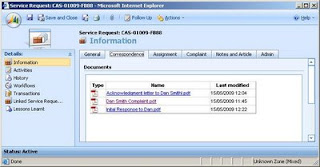
Obvioulsy if you click on the link, it opens the document from SharePoint.
The ASP.net page just has a literal on it which will render a table of documents from the relevant document library folder. It passes the incident id onto a web service.
So the Page_Load event code is
string CRMGUID = "";
if (Request.QueryString["id"] != null)
{
CRMGUID = Request.QueryString["id"].ToString();
Service ws = new Service();
XmlDocument xmldom = new XmlDocument();
xmldom = ws.GetSPSDocs(CRMGUID);
Literal1.Text = xmldom.InnerXml;
}
The Web Service code is given below. Note that I am returning a fragment of HTML wrapped up in a top level DIV tag so I can return it as XML.
Also note that this solution assumes that the folders are all in a flat structure underneath the document library. You'll need a more scalable solution if the number of documents will be large. It would be better to use a CAML query to return just the documents you are interested in rather than the approach I use in this example, but I was in a hurry. It also needs to be changed to support other file types than the three I chose.
[WebMethod]
public XmlDocument GetSPSDocs(string CRMGUID) {
SPLists.Lists ws = new SPLists.Lists();
ws.Url = "http://biztalkcrm:8080/sites/complaints";
string sharePointSiteUrl = "http://biztalkcrm:8080/sites/complaints";
string strListName = "SharedDocuments";
string m_UserName = "Administrator";
string m_Domain = "BIZTALKCRM.local";
string m_Pword = "Password1";
XmlDocument xmldom = new XmlDocument();
string html = "";
// {} not used in folder names
CRMGUID = CRMGUID.Replace("{", "");
CRMGUID = CRMGUID.Replace("}", "");
NameTable nt = new NameTable();
XmlNamespaceManager nsmgr = new XmlNamespaceManager(nt);
nsmgr.AddNamespace("rs", "urn:schemas-microsoft-com:rowset");
nsmgr.AddNamespace("z", "#RowsetSchema");
string filename = "";
string fileurl = "";
XmlNodeList results = null;
DateTime lastmodified ;
html += "<div><table width=\"80%\" border=\"1\" style=\"border-collapse: collapse;\" title=\"Document list\">";
html += "<tr><th class=\"tableheader\">Type</th><th class=\"tableheader\">Name</th><th class=\"tableheader\">Last modified</th></tr>";
try
{
XmlNode nodeList = GetListByName(sharePointSiteUrl, strListName, null, m_UserName, m_Domain, m_Pword);
if (nodeList != null)
{
results = nodeList.SelectNodes("//z:row[@ows_FileRef[contains(.,'" + CRMGUID + "')]]", nsmgr);
//results = nodeList.SelectNodes("//z:row", nsmgr);
}
if (results != null)
{
foreach (XmlNode nodeDoc in results)
{
XmlDocument xDoc = new XmlDocument();
xDoc.LoadXml(nodeDoc.OuterXml);
html += "<tr>";
html += "<td>";
if (GetXmlAttribute(xDoc, "//@ows_LinkFilename", nsmgr).IndexOf("pdf") > 0)
{
html += "<img src=\"http://localhost:8080/_layouts/images/pdf.jpg\" />";
}
if (GetXmlAttribute(xDoc, "//@ows_LinkFilename", nsmgr).IndexOf("msg") > 0)
{
html += "<img src=\"http://localhost:8080/_layouts/images/icmsg.gif\" />";
}
if (GetXmlAttribute(xDoc, "//@ows_LinkFilename", nsmgr).IndexOf("doc") > 0)
{
html += "<img src=\"http://localhost:8080/_layouts/images/icdoc.gif\" />";
}
html += "</td>";
filename = GetXmlAttribute(xDoc, "//@ows_LinkFilename", nsmgr);
fileurl = GetXmlAttribute(xDoc, "//@ows_FileRef", nsmgr);
fileurl = fileurl.Substring(fileurl.IndexOf("#") + 1, fileurl.Length - fileurl.IndexOf("#") - 1);
fileurl = "http://biztalkcrm:8080/" + fileurl;
html += "<td>";
html += "<a href='" + fileurl + "'>" + filename + "</a>";
html += "</td>";
lastmodified = Convert.ToDateTime(GetXmlAttribute(xDoc, "//@ows_Modified", nsmgr));
html += "<td>";
html += lastmodified.ToString("dd/MM/yyyy HH:mm");
html += "</td>";
html += "</tr>";
}
}
}
catch (Exception ex)
{
}
html += "</table></div>";
xmldom.LoadXml(html);
return xmldom;
}
The two other procedures are GetListByName and GetXmlAttribute. Please note that you must change the line in GetListByName where I have hard-coded the Guid of the 'All documents' view on my document library.
string viewName = "{FAD1A412-359A-4FF6-BC1E-0A53934791CD}";
public XmlNode GetListByName(string sharePointSiteUrl, string strListName, XmlNode query, string m_UserName, string m_Domain, string m_Pword)
{
try
{
SPLists.Lists lists = new SPLists.Lists();
SPViews.Views views = new SPViews.Views();
lists.Url = sharePointSiteUrl + "/_vti_bin/lists.asmx";
views.Url = sharePointSiteUrl + "/_vti_bin/views.asmx";
System.Net.NetworkCredential cred = new System.Net.NetworkCredential(m_UserName, m_Pword, m_Domain);
lists.Credentials = cred;
views.Credentials = cred;
XmlNode nodeList = null;
string strRealListName = "";
try
{
switch (strListName)
{
case "SharedDocuments":
strRealListName = "Shared Documents";
break;
}
// string query = "’ ";
XmlDocument temp = new XmlDocument();
// search thro all folders
XmlNode queryOptions = temp.CreateNode(XmlNodeType.Element,"QueryOptions","");
queryOptions.InnerXml = "";
// cheat for view name of All documents
string viewName = "{FAD1A412-359A-4FF6-BC1E-0A53934791CD}";
nodeList = lists.GetListItems(strRealListName, viewName, query, null, "",queryOptions, null);
}
catch (Exception ex)
{
// record error message
}
return nodeList;
}
catch (Exception ex)
{
throw ex;
}
}
public string GetXmlAttribute(XmlNode zrowOuterNode, string XPath, XmlNamespaceManager nsmgr)
{
string strInnerText = "";
XmlNode thisNode = zrowOuterNode.SelectSingleNode(XPath, nsmgr);
if (thisNode != null)
{
strInnerText = thisNode.InnerText;
}
return strInnerText;
}
The approach I've taken is to use a SharePoint document library and create folders for each instance of a CRM entity (in my case service requests). You'll need some code in CRM 4.0 that will create a new folder in SharePoint when a service request is created. And you'll need some way of labelling the folder so it's obvious which service request its referring to (the Case Reference appended with the Customer name might be a good solution). I've been lazy and just used the incidentid as the folder name for this example.
I created a 'Correspondence' tab on the Service Request form. I added an I-Frame and the url to my web page. I checked the option to "Pass record object type code and unique identifier as parameters".

Obvioulsy if you click on the link, it opens the document from SharePoint.
The ASP.net page just has a literal on it which will render a table of documents from the relevant document library folder. It passes the incident id onto a web service.
So the Page_Load event code is
string CRMGUID = "";
if (Request.QueryString["id"] != null)
{
CRMGUID = Request.QueryString["id"].ToString();
Service ws = new Service();
XmlDocument xmldom = new XmlDocument();
xmldom = ws.GetSPSDocs(CRMGUID);
Literal1.Text = xmldom.InnerXml;
}
The Web Service code is given below. Note that I am returning a fragment of HTML wrapped up in a top level DIV tag so I can return it as XML.
Also note that this solution assumes that the folders are all in a flat structure underneath the document library. You'll need a more scalable solution if the number of documents will be large. It would be better to use a CAML query to return just the documents you are interested in rather than the approach I use in this example, but I was in a hurry. It also needs to be changed to support other file types than the three I chose.
[WebMethod]
public XmlDocument GetSPSDocs(string CRMGUID) {
SPLists.Lists ws = new SPLists.Lists();
ws.Url = "http://biztalkcrm:8080/sites/complaints";
string sharePointSiteUrl = "http://biztalkcrm:8080/sites/complaints";
string strListName = "SharedDocuments";
string m_UserName = "Administrator";
string m_Domain = "BIZTALKCRM.local";
string m_Pword = "Password1";
XmlDocument xmldom = new XmlDocument();
string html = "";
// {} not used in folder names
CRMGUID = CRMGUID.Replace("{", "");
CRMGUID = CRMGUID.Replace("}", "");
NameTable nt = new NameTable();
XmlNamespaceManager nsmgr = new XmlNamespaceManager(nt);
nsmgr.AddNamespace("rs", "urn:schemas-microsoft-com:rowset");
nsmgr.AddNamespace("z", "#RowsetSchema");
string filename = "";
string fileurl = "";
XmlNodeList results = null;
DateTime lastmodified ;
html += "<div><table width=\"80%\" border=\"1\" style=\"border-collapse: collapse;\" title=\"Document list\">";
html += "<tr><th class=\"tableheader\">Type</th><th class=\"tableheader\">Name</th><th class=\"tableheader\">Last modified</th></tr>";
try
{
XmlNode nodeList = GetListByName(sharePointSiteUrl, strListName, null, m_UserName, m_Domain, m_Pword);
if (nodeList != null)
{
results = nodeList.SelectNodes("//z:row[@ows_FileRef[contains(.,'" + CRMGUID + "')]]", nsmgr);
//results = nodeList.SelectNodes("//z:row", nsmgr);
}
if (results != null)
{
foreach (XmlNode nodeDoc in results)
{
XmlDocument xDoc = new XmlDocument();
xDoc.LoadXml(nodeDoc.OuterXml);
html += "<tr>";
html += "<td>";
if (GetXmlAttribute(xDoc, "//@ows_LinkFilename", nsmgr).IndexOf("pdf") > 0)
{
html += "<img src=\"http://localhost:8080/_layouts/images/pdf.jpg\" />";
}
if (GetXmlAttribute(xDoc, "//@ows_LinkFilename", nsmgr).IndexOf("msg") > 0)
{
html += "<img src=\"http://localhost:8080/_layouts/images/icmsg.gif\" />";
}
if (GetXmlAttribute(xDoc, "//@ows_LinkFilename", nsmgr).IndexOf("doc") > 0)
{
html += "<img src=\"http://localhost:8080/_layouts/images/icdoc.gif\" />";
}
html += "</td>";
filename = GetXmlAttribute(xDoc, "//@ows_LinkFilename", nsmgr);
fileurl = GetXmlAttribute(xDoc, "//@ows_FileRef", nsmgr);
fileurl = fileurl.Substring(fileurl.IndexOf("#") + 1, fileurl.Length - fileurl.IndexOf("#") - 1);
fileurl = "http://biztalkcrm:8080/" + fileurl;
html += "<td>";
html += "<a href='" + fileurl + "'>" + filename + "</a>";
html += "</td>";
lastmodified = Convert.ToDateTime(GetXmlAttribute(xDoc, "//@ows_Modified", nsmgr));
html += "<td>";
html += lastmodified.ToString("dd/MM/yyyy HH:mm");
html += "</td>";
html += "</tr>";
}
}
}
catch (Exception ex)
{
}
html += "</table></div>";
xmldom.LoadXml(html);
return xmldom;
}
The two other procedures are GetListByName and GetXmlAttribute. Please note that you must change the line in GetListByName where I have hard-coded the Guid of the 'All documents' view on my document library.
string viewName = "{FAD1A412-359A-4FF6-BC1E-0A53934791CD}";
public XmlNode GetListByName(string sharePointSiteUrl, string strListName, XmlNode query, string m_UserName, string m_Domain, string m_Pword)
{
try
{
SPLists.Lists lists = new SPLists.Lists();
SPViews.Views views = new SPViews.Views();
lists.Url = sharePointSiteUrl + "/_vti_bin/lists.asmx";
views.Url = sharePointSiteUrl + "/_vti_bin/views.asmx";
System.Net.NetworkCredential cred = new System.Net.NetworkCredential(m_UserName, m_Pword, m_Domain);
lists.Credentials = cred;
views.Credentials = cred;
XmlNode nodeList = null;
string strRealListName = "";
try
{
switch (strListName)
{
case "SharedDocuments":
strRealListName = "Shared Documents";
break;
}
// string query = "
XmlDocument temp = new XmlDocument();
// search thro all folders
XmlNode queryOptions = temp.CreateNode(XmlNodeType.Element,"QueryOptions","");
queryOptions.InnerXml = "
// cheat for view name of All documents
string viewName = "{FAD1A412-359A-4FF6-BC1E-0A53934791CD}";
nodeList = lists.GetListItems(strRealListName, viewName, query, null, "",queryOptions, null);
}
catch (Exception ex)
{
// record error message
}
return nodeList;
}
catch (Exception ex)
{
throw ex;
}
}
public string GetXmlAttribute(XmlNode zrowOuterNode, string XPath, XmlNamespaceManager nsmgr)
{
string strInnerText = "";
XmlNode thisNode = zrowOuterNode.SelectSingleNode(XPath, nsmgr);
if (thisNode != null)
{
strInnerText = thisNode.InnerText;
}
return strInnerText;
}
View PDF file stored in SharePoint using WEBDAV
WEBDAV is a great way to retrieve documents from SharePoint if all you want to do is display them. I was preparing a demo using CRM 4.0 and wanted to display a PDF file stored in a WSS document library within an I-Frame of the letter entity. I have the full url to the file stored in a custom attibute of CRM (uklg_linkeddocument) so I used an ASPX page to render the PDF file.
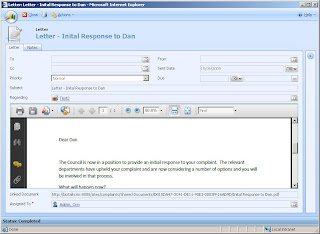
I was only interested in displaying PDF files but it is easy enough to extend to other file formats.
CRM 4.0:
I edited the Letter Form to include an I-Frame that points to the web page the I create below. Check the option to "Pass record object type code and unique identifier as parameters". I added a custom string attribute called uklg_linkeddocument. {How I poulate this field is covered in another post].
You need to publish the cusomtizations AND refresh the CRM web service to get the new attributes to appear in Intellisense in VS. To do this got to Settings -> Customizations -> Download Web Service Description (WSDL) files. Click on the CRMService.ASMX and copy the url from the browser window that opens.
VS 2005 Web Project: Include a Web Reference to the CRMService using the url copied in the CRM step. Call the Web Reference: CrmService.
Edit the ASPX of the web page and remove everything except the <@Page> declaration at the top.
In the .ASPX.CS file add the following namespaces:
using System.IO;
using System.Net;
using System.Text;
using CrmService;
You'll need to change the Organization name for CRM 4.0, the service.url and the credentials you need for accessing CRM 4.0 and SharePoint.
The Page_Load event code is below:
protected void Page_Load(object sender, EventArgs e)
{
string doc = "";
string strSourceURL = "";
try
{
if (Request.QueryString["id"] != null)
{
// Set up the CRM Service.
CrmAuthenticationToken token = new CrmAuthenticationToken();
// You can use enums.cs from the SDK\Helpers folder to get the enumeration for Active Directory authentication.
token.AuthenticationType = 0;
token.OrganizationName = "MyDemo";
CrmService.CrmService service = new CrmService.CrmService();
service.Url = "http://localhost:5555/mscrmservices/2007/crmservice.asmx";
service.CrmAuthenticationTokenValue = token;
service.Credentials = new System.Net.NetworkCredential("Administrator", "Password1", "Integration"); //CredentialCache.DefaultCredentials;
// letter activity = new letter();
Guid createdLetterId = new Guid(Request.QueryString["id"].ToString());
letter activity = (letter)service.Retrieve(EntityName.letter.ToString(), createdLetterId, new AllColumns());
// path to the linked document
strSourceURL = activity.uklg_linkeddocument;
service.Dispose();
}
if (strSourceURL != "")
{
doc = strSourceURL;
WebRequest req = WebRequest.Create(strSourceURL);
req.Method = "GET";
// Network Credentials.
NetworkCredential cred = new NetworkCredential(
ConfigurationManager.AppSettings["username"],
ConfigurationManager.AppSettings["password"],
ConfigurationManager.AppSettings["domain"]);
req.Credentials = cred;
WebResponse resp = req.GetResponse();
Stream str = resp.GetResponseStream();
int len = (int)resp.ContentLength;
byte[] buffer = new byte[len];
str.Read(buffer, 0, len);
str.Close();
str.Dispose();
resp.Close();
Response.Charset = "windows-1252";
if (doc.EndsWith("pdf"))
{
Response.ContentType = "application/pdf";
Response.BinaryWrite(buffer);
}
if (doc.EndsWith("txt"))
{
Response.ContentType = "text/html";
ASCIIEncoding enc = new ASCIIEncoding();
Response.Write(enc.GetString(buffer, 0, len));
}
}
}
catch (Exception ex)
{
Response.Write(ex.Message);
}
}

I was only interested in displaying PDF files but it is easy enough to extend to other file formats.
CRM 4.0:
I edited the Letter Form to include an I-Frame that points to the web page the I create below. Check the option to "Pass record object type code and unique identifier as parameters". I added a custom string attribute called uklg_linkeddocument. {How I poulate this field is covered in another post].
You need to publish the cusomtizations AND refresh the CRM web service to get the new attributes to appear in Intellisense in VS. To do this got to Settings -> Customizations -> Download Web Service Description (WSDL) files. Click on the CRMService.ASMX and copy the url from the browser window that opens.
VS 2005 Web Project: Include a Web Reference to the CRMService using the url copied in the CRM step. Call the Web Reference: CrmService.
Edit the ASPX of the web page and remove everything except the <@Page> declaration at the top.
In the .ASPX.CS file add the following namespaces:
using System.IO;
using System.Net;
using System.Text;
using CrmService;
You'll need to change the Organization name for CRM 4.0, the service.url and the credentials you need for accessing CRM 4.0 and SharePoint.
The Page_Load event code is below:
protected void Page_Load(object sender, EventArgs e)
{
string doc = "";
string strSourceURL = "";
try
{
if (Request.QueryString["id"] != null)
{
// Set up the CRM Service.
CrmAuthenticationToken token = new CrmAuthenticationToken();
// You can use enums.cs from the SDK\Helpers folder to get the enumeration for Active Directory authentication.
token.AuthenticationType = 0;
token.OrganizationName = "MyDemo";
CrmService.CrmService service = new CrmService.CrmService();
service.Url = "http://localhost:5555/mscrmservices/2007/crmservice.asmx";
service.CrmAuthenticationTokenValue = token;
service.Credentials = new System.Net.NetworkCredential("Administrator", "Password1", "Integration"); //CredentialCache.DefaultCredentials;
// letter activity = new letter();
Guid createdLetterId = new Guid(Request.QueryString["id"].ToString());
letter activity = (letter)service.Retrieve(EntityName.letter.ToString(), createdLetterId, new AllColumns());
// path to the linked document
strSourceURL = activity.uklg_linkeddocument;
service.Dispose();
}
if (strSourceURL != "")
{
doc = strSourceURL;
WebRequest req = WebRequest.Create(strSourceURL);
req.Method = "GET";
// Network Credentials.
NetworkCredential cred = new NetworkCredential(
ConfigurationManager.AppSettings["username"],
ConfigurationManager.AppSettings["password"],
ConfigurationManager.AppSettings["domain"]);
req.Credentials = cred;
WebResponse resp = req.GetResponse();
Stream str = resp.GetResponseStream();
int len = (int)resp.ContentLength;
byte[] buffer = new byte[len];
str.Read(buffer, 0, len);
str.Close();
str.Dispose();
resp.Close();
Response.Charset = "windows-1252";
if (doc.EndsWith("pdf"))
{
Response.ContentType = "application/pdf";
Response.BinaryWrite(buffer);
}
if (doc.EndsWith("txt"))
{
Response.ContentType = "text/html";
ASCIIEncoding enc = new ASCIIEncoding();
Response.Write(enc.GetString(buffer, 0, len));
}
}
}
catch (Exception ex)
{
Response.Write(ex.Message);
}
}
Monday, November 26, 2007
Voyages with BlackPearl - 2. SharePoint permissions
I have a K2 BlackPearl workflow that is integrated to an InfoPath form. The workflow creates a number of InfoPath client events each with a different view.
Users will initiate the workflow from SharePoint, clicking on a link on the home page which opens the initial view of the form. As the workflow advances to the next InfoPath client event it adds a copy of the InfoPath form to the form library that I specified when I attached the form to the workflow.
So I was wondering what are the minimum permissions I need to give users to this site in order for them to create workflows but not edit anything else?
I created a SharePoint group called 'WorkflowUsers' and added my users (or AD groups if you're smart) as members. I gave the group WorkflowUsers 'Read' permission to the site. The lists, libraries and other SharePoint objects inherit this permission. But Read permission is not enough to initiate workflows in this situation. WorkflowUsers also have to have Contribute permissions on the K2 BlackPearl Data Connection library and on the Form library where the workflow stores the forms. This is achieved by navigating to each, change the settings and using the Edit Permissions option to break the inheritance form the site. You can then change permission to Contribute for the WorkflowUser group.
I give the K2 Service account full permission to the site, which is probably more than is necessary but then it's just a service account.
Users will initiate the workflow from SharePoint, clicking on a link on the home page which opens the initial view of the form. As the workflow advances to the next InfoPath client event it adds a copy of the InfoPath form to the form library that I specified when I attached the form to the workflow.
So I was wondering what are the minimum permissions I need to give users to this site in order for them to create workflows but not edit anything else?
I created a SharePoint group called 'WorkflowUsers' and added my users (or AD groups if you're smart) as members. I gave the group WorkflowUsers 'Read' permission to the site. The lists, libraries and other SharePoint objects inherit this permission. But Read permission is not enough to initiate workflows in this situation. WorkflowUsers also have to have Contribute permissions on the K2 BlackPearl Data Connection library and on the Form library where the workflow stores the forms. This is achieved by navigating to each, change the settings and using the Edit Permissions option to break the inheritance form the site. You can then change permission to Contribute for the WorkflowUser group.
I give the K2 Service account full permission to the site, which is probably more than is necessary but then it's just a service account.
Subscribe to:
Posts (Atom)