This might be a bit basic but I thought I would give a step by step guide on how to customise a SharePoint list form. The first step is you need a web control.
In your Visual Studio project you need a TEMPLATES folder and a CONTROLTEMPLATES folder beneath it. This is where you add your user control. Lets not worry too much about the code on the user control just yet.
Next we want to make the web control available when the SharePoint list form loads.
To do this add the line
<%@ Register TagPrefic="xyz" TagName="MyWebControl" src="~/_controltemplates/WebControl.ascx" %>
into the web page.
Now there are two ways to do this depending on what you want to achieve.
Firstly you can add the line into the master page so that is available to every page on the site.
Secondly you can add it to the custom page associated to the list.
In either event, the result is that the code on the web control is executed when your page loads. Since your web control is injected into the HTML of the page you can do all kindes of things from adding inline css styles that can be applied to the page or by injecting javascript onto the page to hide a menu or menu item.
One approach is to add an asp:panel onto the ASCX and embed your css styles between the start and end tags of the panel. You can also embed javascript to change the way the page is displayed.
Your code behind can then determine when to make the panel visible or hidden which will determine if the styles are applied to the page or not.
If you need to have more control over the javascript go to the code behind and use the RegisterClientScript() method or add a literal control and set the text property to the javascript function. When the literal control is rendered, the javascript is executed.
Showing posts with label SharePoint 2007. Show all posts
Showing posts with label SharePoint 2007. Show all posts
Friday, January 21, 2011

SharePoint 2007 Creating Custom Forms for Custom Lists
I was recently wondering how I was going to create custom forms (EditForm.aspx, DispForm.aspx) for a custom list.
Now I want to deploy my custom list as a feature of course so I need to add these forms and the associated schema.xml file into my Visual Studio project.
But how was I to go about creating the form?
I though about using SharePoint Designer but a cold shiver ran down my spine.
Than a friend of mine pointed out this wonderful utility: OCDExportList
It is an extension to the stsadm command and is available as a WSP. It's deployed globally to your SharePoint site.
After that you can use the command
stsadm -o ocdexportlist -url http://mysiteurl -name listname -dir c:\temp
Now I want to deploy my custom list as a feature of course so I need to add these forms and the associated schema.xml file into my Visual Studio project.
But how was I to go about creating the form?
I though about using SharePoint Designer but a cold shiver ran down my spine.
Than a friend of mine pointed out this wonderful utility: OCDExportList
It is an extension to the stsadm command and is available as a WSP. It's deployed globally to your SharePoint site.
After that you can use the command
stsadm -o ocdexportlist -url http://mysiteurl -name listname -dir c:\temp
and it will generate in the c:\temp directory the schemal.xml file and assoicated forms for this list. Copy this across to the feature folder of the custom list and you should be good to start customizing.
That's a great time saver.
SharePoint 2007 Approval Workflow US Date format in Emails
I am using SharePoint 2007 with SP2 in a 64bit environment. The SharePoint Server regional settings are set to English (UK) and the SharePoint site I am using is also set English UK settings. I am also using the out-of-the-box approval workflow so you would expect that any dates are shown in UK format both in the workflow history and in emails sent by the workflow.
Wrong. They display in US format (MM/dd/yyyy).
Now when I Googled this I found this site which suggested it is fixed in the October 2008 Cumulative update. Indeed the Microsoft support page explicitly states as fixed "Sharepoint workflow notification e-mail messages do not use locale date and time formats".
Wrong again.
Wrong. They display in US format (MM/dd/yyyy).
Now when I Googled this I found this site which suggested it is fixed in the October 2008 Cumulative update. Indeed the Microsoft support page explicitly states as fixed "Sharepoint workflow notification e-mail messages do not use locale date and time formats".
Wrong again.
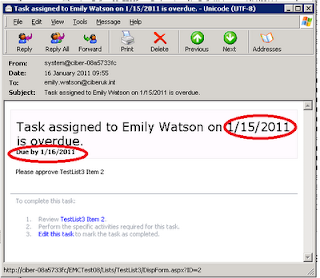
Maybe it was fixed back in October 2008 (pre SP2) but I can tell you it's not working post SP2. I raised a support call with Microsoft and proved that the dates are indeed in US format when they shouldn't be.
You require the August 2010 Cumulative Update from Microsoft to be applied to get this to work. Once the hotfix is applied then it all works prefectly with the due date correctly appearing in UK format both in the workflow history and in the emails. This even works on workflows that are in flight before you applied the hotfix.
While I am glad to have a solution, Microsoft should be ashamed that something as basic as this has had to be fixed twice. Zero points, Microsoft!
You require the August 2010 Cumulative Update from Microsoft to be applied to get this to work. Once the hotfix is applied then it all works prefectly with the due date correctly appearing in UK format both in the workflow history and in the emails. This even works on workflows that are in flight before you applied the hotfix.
While I am glad to have a solution, Microsoft should be ashamed that something as basic as this has had to be fixed twice. Zero points, Microsoft!
Subscribe to:
Posts (Atom)