Forgive me reader, it has been a while since my last post.
I have a project that involved deploying three InfoPath browser-enabled forms made available on a SharePoint 2007 site. The site is an extranet site, accessed over the Internet by users who use an AD account and password to login.
The infrastruture uses ForeFront Threat Management Gateway (the successor to ISA server). Now TMG is a bit of a God-send for developers because it handles SSL for you. TMG hold the Server Certificate and takes all inbound https requests and maps them to http requests on port 80. Very neat, because it means that I can focus on developing the SharePoint site and not worry about SSL. Not quite.
I ran into some issues with the InfoPath forms. They worked absolutely fine when called internally: reading data from a web service upon load and then submitting to a web service on Submit. When I called the same forms when accessing the site externally, then I got several problems.
1. I could not load the forms at all initially.
2. When the form did load, the company logo would not display. IE gave me a warning message about unsecure content on the page and I could not disable it even by allowing Mixed Content in IE options.
3. The third error came when I tried to submit. "The form cannot be submitted to the Web server either because your computer is offline or because the host server is currently unavailable".
4. When the form closed, I got an error whereas it should have redirected back to the calling page. Again it was working fine internally.
The first problem is due to the supposed complexity of the url used to call the form (its the passed parameters). This is TMG rejecting the url. It is solved by modifying the HTTP policy on the Firewall rule to uncheck the options "Blocking high bit characters " and "Verify Normalization".
The second problem is fixed by the same solution as the third problem. If you take a look at the source code there is a variable g_objCurrentFormData that holds the content for the form. Buried in there you will find the url for the location of the xsn and its "Source" (the url it will return to) but InfoPath replaces the http:// with http:\u002f\u002f. Isn't that obscure? The issue is that it is using http and not https so you need to create a Link Translation on the Firewall policy that maps http:\u002f\u002fcontoso.com with https:\u002f\u002fcontoso.com. When that is done it, the form submitted successfully and also displayed the company logo without any warning messages from IE.
The fourth problem is due to the url for calling the form. It includes an &Source= parameter that is the return url for the form. But it uses the http url and that won't work externally. Trying to change it to be https also gave an error. So in the end I simply removed it, and the form still managed to return to the originating url. By the way, to force the form in the browser append &OpenIn=Browser.
So in the end I didn't have to make any changes to my form to make it work externally, it was all down to settings in TMG.
Go in peace - and say twenty Hail Mary's.
Showing posts with label browser. Show all posts
Showing posts with label browser. Show all posts
Wednesday, October 6, 2010

Thursday, May 13, 2010
InfoPath 2007 and Forms Services
I struggle to remember how to deploy an InfoPath 2007 form to SharePoint when it is a browser version. So here's the deal.
Create the InfoPath form and make sure the compatibility is set for browser version and that you make the form Fully Trusted and sign it with a digital certificate.
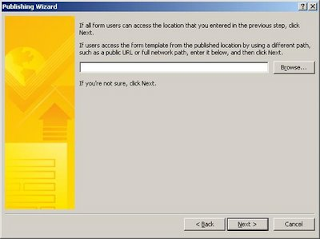
Now publish to form to a network location - its a temporary location and you can make it a local directory if you want. But when prompted to provide an alternate name for the form, leave this blank.
Create the InfoPath form and make sure the compatibility is set for browser version and that you make the form Fully Trusted and sign it with a digital certificate.
Now publish to form to a network location - its a temporary location and you can make it a local directory if you want. But when prompted to provide an alternate name for the form, leave this blank.
Now go to Central Administration and Application Centre and then select Upload Form template under InfoPath Form Services.
On the screen click Browse and navigate to where you uploaded the InfoPath template to. Click Verify and check for errors, if OK, then use Upload to upload the form template.
Go to Manage Form Templates and wait for the form to be installed and then right click and activate it to a site collection. What happens is the form is copied to the Form Template document library of the site collection (use View Site Content on the site collection in question to see the Form Templates library). It also adds the for as a site content type.
So now go to the top site of the site collection, choose Site Actions and Site Content Types. Scroll down the screen until you see the Content Type under Form Content types.
If you go to a Form Library and set it for supporting content types, you will be able to add en existing content type and then add the new form template.
If you go back to the Form Library and select New you should see the new Form type under the list. That will open the form template in the browser window.
So how is this different when the form has managed "code behind"? Answer: it's the same. In the case of an InfoPath form with managed code, you would create a Visual Studio project as an InfoPath form template and use your XSN as the source form. You will need to have installed the Office 2007 Visual Studio templates. Click on the Manifest.XSF to Open the form. The FormCode.cs has the code behind. From the Project menu you will be able to Build and then Publish the form. The same wizard is displayed and you would publish to a local directory leaving the laternate name of the form blank. The DLL that is created with the form is embedded in the XSN. Upload the form template in the same way.
On the screen click Browse and navigate to where you uploaded the InfoPath template to. Click Verify and check for errors, if OK, then use Upload to upload the form template.
Go to Manage Form Templates and wait for the form to be installed and then right click and activate it to a site collection. What happens is the form is copied to the Form Template document library of the site collection (use View Site Content on the site collection in question to see the Form Templates library). It also adds the for as a site content type.
So now go to the top site of the site collection, choose Site Actions and Site Content Types. Scroll down the screen until you see the Content Type under Form Content types.
If you go to a Form Library and set it for supporting content types, you will be able to add en existing content type and then add the new form template.
If you go back to the Form Library and select New you should see the new Form type under the list. That will open the form template in the browser window.
So how is this different when the form has managed "code behind"? Answer: it's the same. In the case of an InfoPath form with managed code, you would create a Visual Studio project as an InfoPath form template and use your XSN as the source form. You will need to have installed the Office 2007 Visual Studio templates. Click on the Manifest.XSF to Open the form. The FormCode.cs has the code behind. From the Project menu you will be able to Build and then Publish the form. The same wizard is displayed and you would publish to a local directory leaving the laternate name of the form blank. The DLL that is created with the form is embedded in the XSN. Upload the form template in the same way.
Subscribe to:
Posts (Atom)